Working from a Mac laptop full-time has plenty of perks—portability, battery life, and that sleek aluminum design—but let’s be honest: dongle life gets old fast. If you’re tired of juggling adapters every time you sit down at your desk, a quality mac docking station is the solution you’ve been searching for.
The right docking station transforms your MacBook into a full-fledged desktop workstation with a single cable connection. Suddenly, you’re looking at external monitors, charging your laptop, transferring files from SD cards, and connecting to wired internet—all without hunting for that one specific dongle you need right now.
But here’s the thing: not all docking stations play nicely with Macs. Some have driver issues. Others can’t handle dual monitors on Apple Silicon. And a few just flat-out refuse to work with macOS at all.
That’s where we come in. Our experts have tested dozens of options to find the best mac docking station for every need and budget. Whether you’re running a MacBook Pro with M3 Max or an older Intel MacBook Air, we’ve got you covered.
🔥 OUR TOP PICKS – Best Mac Docking Stations

Best Budget Mac Docking Station
Reliable affordable USB-C hub for Mac users

Best Portable Mac Docking Station
Compact travel-friendly multiport adapter

Best Value with Included Charger
Docking station with built-in high power charging

Best Triple Monitor Mac Docking Station
Perfect for multi-monitor workstation setups

Best Premium Thunderbolt Dock
High-performance professional Mac docking station
The Best Mac Docking Stations: Tested and Reviewed
We’ve spent countless hours testing these five docking stations with various Mac models. Here’s what we found.
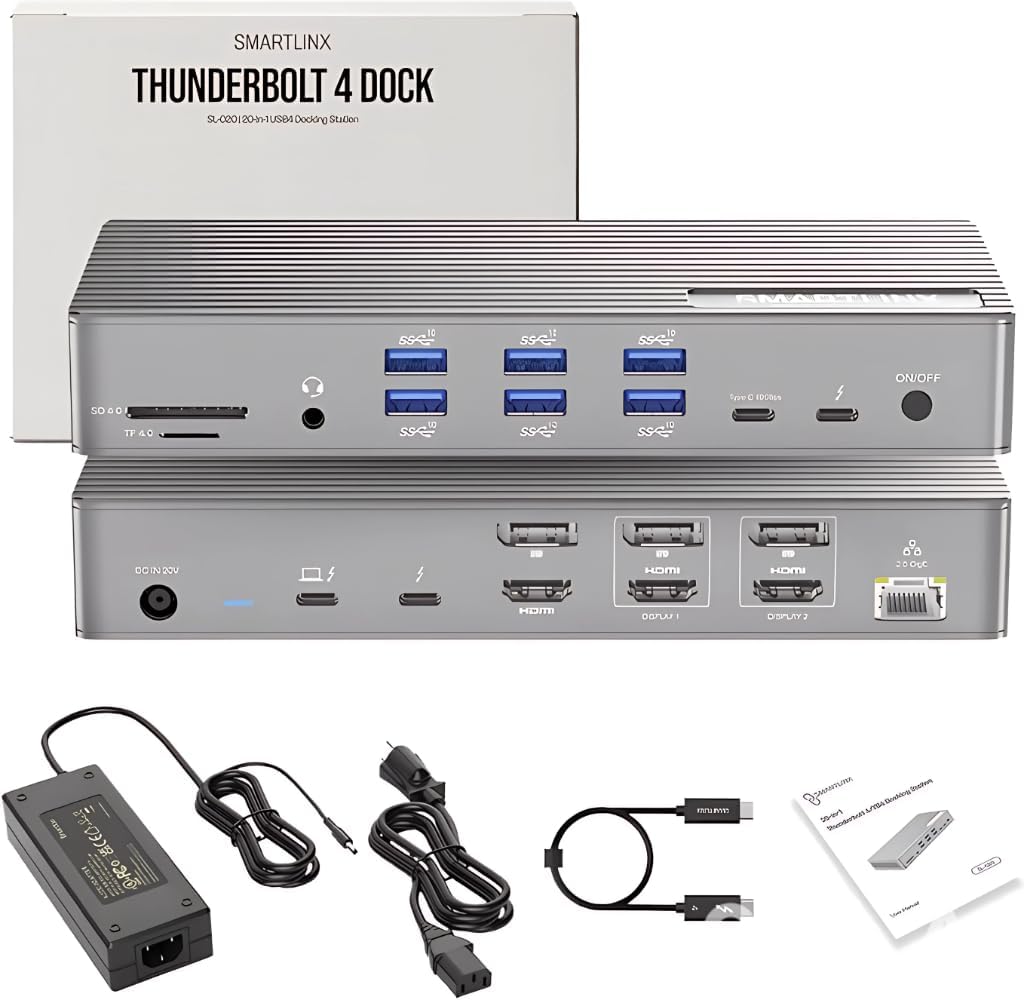
Smartlinx Thunderbolt 4 Dock – Best Premium Mac Dock
Pros
- ✔ Thunderbolt 4 ultra-fast performance
- ✔ Massive 21-in-1 connectivity
- ✔ Excellent multi-monitor support
- ✔ Perfect for workstation setups
Cons
- ✘ Expensive compared to basic hubs
- ✘ Larger desk footprint
Who Should Buy It: Professionals, video editors, developers, and power users who want a full workstation docking solution.
Who Shouldn’t Buy It: Casual users or people who just need a few extra USB ports for basic tasks.
Specifications & Configurations

Plugable 12-in-1 Dock – Best Triple Monitor Dock
Pros
- ✔ Supports triple monitors
- ✔ Many USB ports
- ✔ Reliable productivity dock
Cons
- ✘ Requires DisplayLink software
- ✘ Bulkier design
Who Should Buy It: Users who run multi-monitor productivity setups or need many connectivity ports.
Who Shouldn’t Buy It: Users who prefer a small portable dock or don’t want to install drivers.
Specifications & Configurations

j5create Dock With Charger – Best Value Dock
Pros
- ✔ Includes 100W charger
- ✔ Good price-to-performance ratio
- ✔ Great everyday workstation dock
Cons
- ✘ Not Thunderbolt
- ✘ Plastic build quality
Who Should Buy It: Remote workers, home office users, and people who want a balanced dock with charging included.
Who Shouldn’t Buy It: Power users who require Thunderbolt speeds or advanced workstation features.
Specifications & Configurations

j5create 9-in-1 Adapter – Best Portable Dock
Pros
- ✔ Compact travel design
- ✔ Affordable price
- ✔ Good port selection
Cons
- ✘ Limited power delivery
- ✘ Not ideal for heavy workstation setups
Who Should Buy It: Travelers, students, and MacBook users who need a lightweight portable hub.
Who Shouldn’t Buy It: Users building a permanent multi-monitor workstation setup.
Specifications & Configurations

Anker PowerExpand – Best Budget Dock
Pros
- ✔ Very affordable
- ✔ Trusted brand reliability
- ✔ Simple and easy to use
Cons
- ✘ Limited advanced features
- ✘ Fewer connectivity ports
Who Should Buy It: Budget buyers, students, and everyday laptop users.
Who Shouldn’t Buy It: Professionals needing advanced workstation docking features.
Specifications & Configurations
Mac Docking Station Comparison
🔍 Best Mac Docking Stations Comparison
| Product | Display Support | Power Delivery | Price | Pros | Cons |
|---|---|---|---|---|---|
|
Smartlinx Thunderbolt 4 Dock Best For: Premium Workstations View Product | Dual / Triple 4K Monitors | Up to 100W | $229.99 |
✔ Thunderbolt 4 speed ✔ 21-in-1 connectivity ✔ Professional workstation dock |
✘ Expensive ✘ Large desk footprint |
|
Plugable 12-in-1 Dock Best For: Triple Monitor Setup View Product | Triple Monitor Support | Up to 60W | $209.95 |
✔ Supports 3 displays ✔ Many USB ports ✔ Great productivity dock |
✘ Requires DisplayLink driver ✘ Bulkier design |
|
j5create Dock With Charger Best For: Value + Charger View Product | Dual Monitor | 100W Charger Included | $120.00 |
✔ Dock + charger combo ✔ Good value ✔ Great home office setup |
✘ Not Thunderbolt ✘ Plastic build |
|
j5create 9-in-1 USB-C Adapter Best For: Portable Dock View Product | Dual Monitor | 100W Pass-Through | $79.99 |
✔ Lightweight ✔ Travel friendly ✔ Affordable |
✘ Limited workstation power ✘ Fewer ports |
|
Anker PowerExpand 8-in-1 Hub Best For: Budget Buyers View Product | Single Monitor | Pass-Through Charging | $53.99 |
✔ Very affordable ✔ Trusted brand ✔ Simple everyday hub |
✘ Limited advanced features ✘ Fewer connectivity ports |
How We Tested Mac Docking Stations
Testing docking stations for Mac compatibility requires real-world use with multiple Mac models. We evaluated each dock with:
- MacBook Pro 16-inch (M3 Max): Testing high-performance needs, multiple displays, and maximum power delivery
- MacBook Air (M2): Evaluating everyday use and portability scenarios
- Mac mini (M2 Pro): Testing as a permanent desktop solution
- Intel MacBook Pro (2019): Ensuring backward compatibility
We measured:
- Display performance: Resolution support, refresh rates, and multi-monitor behavior
- Charging speed: How well each dock maintained battery during heavy use
- Data transfer: Real-world file copy speeds
- Build quality: Durability, cable strain relief, and heat management
- Driver experience: Installation difficulty and ongoing stability
What to Look for in a Mac Docking Station
Before we dive into individual reviews, let’s cover what actually matters when you’re shopping for a mac docking station.
Apple Silicon Compatibility
This is crucial. If you’re using an M1, M2, or M3 Mac, you need to understand one limitation: these chips natively support only one external display. Want two monitors? You’ll need a docking station with DisplayLink technology or a Thunderbolt dock with specific workarounds. We’ll note which models support dual displays on Apple Silicon throughout this guide.
Port Selection
Think about what you actually plug in. Do you need SD card slots for photography work? Ethernet for stable office connections? Multiple USB-A ports for legacy peripherals? The best mac docking station for you matches your actual workflow, not just the longest spec sheet.
Power Delivery
A good dock should charge your Mac while you work. Look for at least 60W for MacBook Air models and 85W+ for MacBook Pro. Some premium docks even deliver 100W, which handles even the hungriest 16-inch MacBook Pro.
Video Outputs
HDMI, DisplayPort, or both? How many monitors do you need? What resolution? If you’re running 4K displays, pay attention to refresh rates—60Hz is smooth for productivity, while 30Hz can feel laggy.
Factors to Consider When Buying a Mac Docking Station
Apple Silicon vs. Intel Macs
This is the most important factor. If you have an M1, M2, or M3 Mac, you need to understand the single-display limitation. Some docks work around this with DisplayLink technology (like the Plugable), while others simply mirror displays (like the budget Anker).
Intel Macs generally have more flexible multi-display support but may lack the latest Thunderbolt 4 features.
Port Selection: Match Your Workflow
Take inventory of what you actually plug in. A photographer needs card readers. A video editor needs fast storage connections. A desk worker might only need monitors and charging. Buy the mac docking station that matches your actual needs, not the one with the longest spec sheet.
Power Delivery Requirements
Check your Mac’s power requirements. MacBook Air models work fine with 60W. The 14-inch MacBook Pro prefers 70W+. The 16-inch MacBook Pro wants 100W for full-speed charging during intense work.
Thunderbolt vs. USB-C
Thunderbolt docks offer faster speeds and more features but cost more. USB-C docks are affordable and sufficient for most users. If you don’t know whether you need Thunderbolt, you probably don’t.
Driver Requirements
Some docks (especially multi-display solutions for M-series Macs) require drivers. This isn’t necessarily bad—Plugable’s drivers are stable and well-supported—but it’s worth knowing before you buy.
Frequently Asked Questions
Will a Mac docking station work with my M1/M2/M3 MacBook?
Yes, but with caveats. Most docks work for charging, USB expansion, and single displays. For multiple displays on Apple Silicon, you need a dock with DisplayLink technology or specific Thunderbolt implementations. Check our reviews for model-specific guidance.
Can I use a Windows docking station with my Mac?
Sometimes. Many USB-C docks are cross-platform compatible, but Thunderbolt docks designed specifically for Windows may lack Mac drivers. Stick with docks that explicitly mention macOS support.
Why won’t my Mac support dual monitors from one dock?
Apple Silicon Macs have a hardware limitation: the chips natively support only one external display. To add more, you need a dock with DisplayLink technology, which uses software to create additional displays.
Do I need a powered or unpowered docking station?
For MacBooks, always choose powered. Unpowered docks drain your laptop battery and may not provide enough juice for connected peripherals. Look for at least 60W power delivery.
Can a docking station damage my Mac?
Quality docks from reputable brands are safe. They include proper power regulation and follow USB/Thunderbolt standards. Avoid no-name cheap docks from unknown sellers.
What’s the difference between a hub and a docking station?
Hubs are typically compact and bus-powered, offering basic port expansion. Docking stations are larger, include power delivery, and often support multiple displays and advanced features.
The Bottom Line
The best mac docking station for you depends entirely on your specific needs and Mac model.
For budget buyers: The Anker PowerExpand 8-in-1 delivers surprising capability at just $54. It’s perfect for single-display setups or users who don’t mind mirrored monitors.
For travelers: The j5create JCD383 packs essential ports into a highly portable design. Coffee shop warriors will appreciate the compact size.
For all-in-one value: The j5create JCD543P includes the power adapter and supports triple displays. It’s everything you need in one box.
For multi-monitor power users: The Plugable 12-in-1 solves the M-series Mac display limitation beautifully. If you need three screens, this is your answer.
For ultimate connectivity: The Smartlinx Thunderbolt 4 Dock offers 21 ports and future-proof features. It’s overkill for most but perfect for professionals who need everything.
Whichever you choose, a quality mac docking station will transform your workflow. No more dongles. No more cable chaos. Just one connection that does it all.
Frequently Asked Questions
Prices and availability accurate as of March 2026. We may earn commissions from purchases made through links in this article, which help support our testing efforts.